
AI ad cloning: how to adapt a reference for your product
AI ad cloning uses a reference video’s scenes, pacing or presentation to guide a new product video. In Nexscope Video Clone, resolve a supported TikTok link or upload a reference, confirm the segment, add your product images and review the prompt before generating a new version.
Quick answer: Use a reference you can reuse and describe precisely what should transfer to the new clip. Preserve your own product’s appearance and approved facts. Video Clone generates a new concept; it does not guarantee an identical reproduction or carry over the reference ad’s performance.
What makes a useful reference ad?
Choose a short reference with a clear idea that suits your product. A simple reveal, camera move or scene progression is easier to describe and inspect than a clip with many products, transitions and unrelated actions.
Use the official Video Clone page to understand the reference-led format. If you only have a product photo, start with the image-to-video guide. If your message needs a presenter, the Avatar Video tutorial covers that workflow.
Before importing, write a two-column brief:
| Keep as creative direction | Replace or remove |
|---|---|
| A slow move toward the product | The reference product and branding |
| A reveal followed by a detail shot | Claims that do not apply to your item |
| A calm tabletop setting | Unrelated people, offers and accessories |
| A short closing moment | Text or audio you have not cleared for use |
Use your own creative or material you have permission to use. An accessible video link is not itself permission to reuse someone’s footage, identity or music. Focus the brief on the elements you intend to adapt rather than asking for an indistinguishable copy.
How do you add and confirm the reference video?
Open Video Clone and choose either the TikTok-link route or a local reference upload. Confirm the preview and selected segment before moving to the generation prompt.
For a supported TikTok link:
- Paste the video link into the reference field.
- Run the link analysis and wait for it to resolve.
- Preview the resolved video in the clip-selection dialog.
- Choose the relevant segment or full clip where supported.
- Confirm that the selected reference is the one you intend to use.
For a local file, choose upload and check the accepted format, file size and clip constraints displayed by the current workspace. Maximum reference duration depends on the selected workflow/model configuration; do not assume a duration from another video tool applies here.
If a link cannot be resolved, check that it points to the intended accessible video. Use an authorized local copy when appropriate. A failure to import a reference is an input problem to resolve before generating; repeatedly submitting the same unresolved link will not improve the brief.
How do you connect the reference to your own product?
Add clear product images and describe the relationship between the reference action and your item. Keep one exact SKU consistent across the source images.
For an illustrative reusable-bottle concept, you might prepare a front image, side image and cap detail, all showing the same color and finish. The reference might contribute a slow tabletop reveal and a close-up. The bottle’s size, label and parts should come from your own product material.
This example is a planning exercise, not a generated result. Avoid borrowing a reference demonstration that implies an unverified capability: a bottle floating in an original ad does not establish that your bottle floats or is leakproof.
Give the model a focused instruction about what to retain and what to change:
Use the confirmed reference segment for its slow tabletop reveal
and move toward a detail shot. Feature only the bottle shown in
my supplied images. Preserve its color, label, cap and proportions.
Replace the reference product and background branding.
Use a simple surface and one continuous camera move.
Do not invent a capacity, leak test, discount or customer review.
Requesting a feature does not ensure it will survive generation. The review step is where you decide whether the actual output meets the brief.
Can AI help write the Video Clone prompt?
Yes. The workflow can analyze the supplied reference and product material to propose a prompt, which you should review before generating. You can also enter your own direction.
Check the proposed wording against your keep/replace brief. Remove a claim inherited from the original ad, correct the product name and simplify any interaction that would be hard to inspect. If the analysis starts a background task, follow its displayed status rather than repeatedly launching new analyses while one is working.
The current generation flow requires a prompt as well as the reference and product images. Changing the reference segment or product material should trigger a fresh review of that prompt; wording prepared for an earlier combination may describe the wrong scene.
Which settings and costs should you review before generating?
Choose from the model and output options available in Video Clone, then check its current credit estimate. A model listed elsewhere in the library may not support every reference input or output setting in this workflow.
Review duration, resolution and aspect ratio alongside the reference. A short vertical reference may need a different composition if you request a landscape output. When supported, also check language or audio-related settings against the intended result.
Read the account requirements and displayed estimate before submitting once. Consult the current pricing page for plan information. Each new generation can use credits, so compare a small number of deliberate variations rather than resubmitting an unchanged brief repeatedly.
Generation creates a candidate clip. Uploading it to an ad account, selecting an audience, setting a budget and publishing are separate actions.
How do you decide whether the new ad is usable?
Compare the output with both the reference and your own product images. The reference helps judge the intended creative structure; your product material determines whether the item is accurate.
| Review area | Question |
|---|---|
| Opening | Is the product clear in the first visible moment? |
| Structure | Did the output keep the creative idea you selected? |
| Identity | Are color, proportions, packaging and parts consistent? |
| Motion | Are the camera move and product interaction plausible? |
| Message | Did text or speech add an unsupported claim? |
| Ending | Does the last frame suit the next action you planned? |
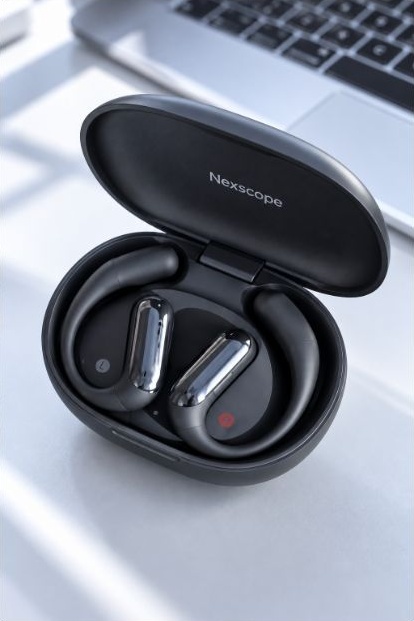
The pre-existing official wireless-earbud product image and Video Clone example illustrate a product-focused creative output. They are not results from the bottle brief and do not document a controlled performance comparison.
If the product changes shape, improve the images or reduce the action. If the reference idea disappears, narrow the selected segment and make the keep instruction more specific. If the opening is weak, test a revised opening while holding the product facts and remaining direction steady. Record the change so a later comparison has a clear basis.
Common questions about AI ad cloning
Will the new clip look exactly like the reference?
No. Scenes, timing, motion and product details can vary. Use the reference as direction and review the generated result on its own merits.
Can I create several versions for one product?
Yes. Change the reference or a specific part of the direction to explore another concept. Keep a record of the inputs and check the estimate before each generation.
Does a strong reference guarantee a strong-performing ad?
No. Audience, offer, placement and the new creative all affect results. The generation process does not establish click-through rate, sales lift or advertising approval.
For multiple product tasks, continue with the Bulk Video guide. For a broader research-to-creative process, read the TikTok Shop UGC workflow.
Last reviewed: 2026-11-02 · Maintained by the official Nexscope team · Editorial & evidence policy.