Nexscope video workflow directory

AI product videos.
Start with what you have.

Nexscope offers five AI product video workflows for ecommerce sellers and creative teams: Image to Video, URL to Video, Avatar Video, Video Clone and Bulk Video. Choose by the material you already have, compare the outputs below, then open the matching workspace to review settings and credit estimates before generating.

  • 5 focused workflows
  • Review scripts and settings
  • Check credits before generating
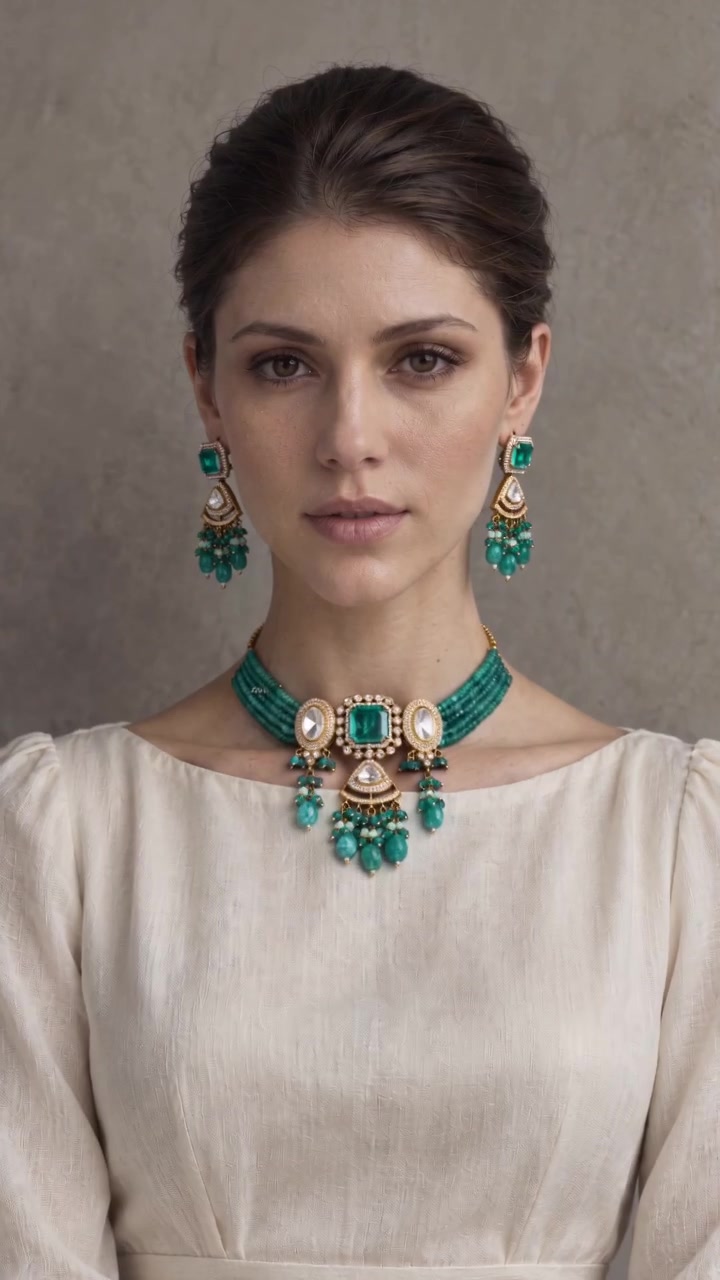
Poolside Sunglasses, official example posterOfficial Image to Video example
Original product used for Poolside SunglassesProduct photo
Start with a photo.Explore the possibilities.

Explore video generation models.

Compare video models, then open the matching API playground.

  • Seedance
  • Kling
  • Wan
  • Hailuo
  • MiniMax
  • Happy Horse

Choose by the job, not the model name

Which AI video workflow fits your product?

Start with photos for motion, a listing for a script, an avatar for a presenter, a clip for creative direction, or a batch after a single-product test.

Compare Nexscope video workflows by starting material, best fit and output.
WorkflowStart withBest forWhat you get
Image to Video Clear product photos. Add a short motion description, or choose a template.A product reveal, moving packshot or scene-led social clip.A generated product clip guided by your photos and motion brief.
URL to Video An accessible product page URL. Review imported facts and choose suitable images.Sellers who want to start from an existing product listing.A product video built from reviewed listing details, images and script.
Avatar Video Product images, an available avatar and accurate product facts or selling points.A presenter-led product introduction or feature explanation.An AI-presenter product video based on your chosen script concept.
Video Clone A reference video you have permission to use, plus images of your own product.Exploring a reference-led creative concept with your own product.A new product video guided by a selected reference segment.
Bulk Video Product names, images and reviewed product information for each item.Teams making repeatable videos for several products.A batch of product video jobs to review, retry and download.

On a small screen, scroll the table sideways to compare all columns.

Choose your starting material

A workflow for what you already have.

Start with one product and a clear idea. You can refine the script and output settings in the workspace.

5 workflows to explore
Image to Video: Poolside SunglassesImage to Video
A simple place to start

Image to Video

Give your product photos some motion.

Create a product showcase or scene from your images and a motion direction. Use a template or describe the result you want.

Best for
A product reveal, moving packshot or scene-led social clip.
Output
A generated product clip guided by your photos and motion brief.
What to prepare & how it works
BringClear product photos. Add a short motion description, or choose a template.
  1. Add product images
  2. Choose a template or motion direction
  3. Review settings and generate

Reference images, first/end frames and audio inputs depend on the selected model.

URL to Video: EmerraURL to Video
From listing to story

URL to Video

Turn a product page into a video brief.

Import product details and images, choose a marketing angle, then review an AI script or write your own before generating.

Best for
Sellers who want to start from an existing product listing.
Output
A product video built from reviewed listing details, images and script.
What to prepare & how it works
BringAn accessible product page URL. Review imported facts and choose suitable images.
  1. Import and check product details
  2. Choose an angle and edit the script
  3. Choose a presenter if needed and generate

Link extraction depends on the source page. Confirm product facts and promotion terms before generating.

Avatar Video: Creator-led sandal reviewAvatar Video
Explain the product

Avatar Video

Put a presenter in your product story.

Combine product images, an available avatar and your selling points. Review AI script concepts and edit the wording for your audience.

Best for
A presenter-led product introduction or feature explanation.
Output
An AI-presenter product video based on your chosen script concept.
What to prepare & how it works
BringProduct images, an available avatar and accurate product facts or selling points.
  1. Add your product and choose an avatar
  2. Create or edit a script concept
  3. Set language, market and output options

An AI presenter is not a customer testimonial. Review the script for unsupported claims.

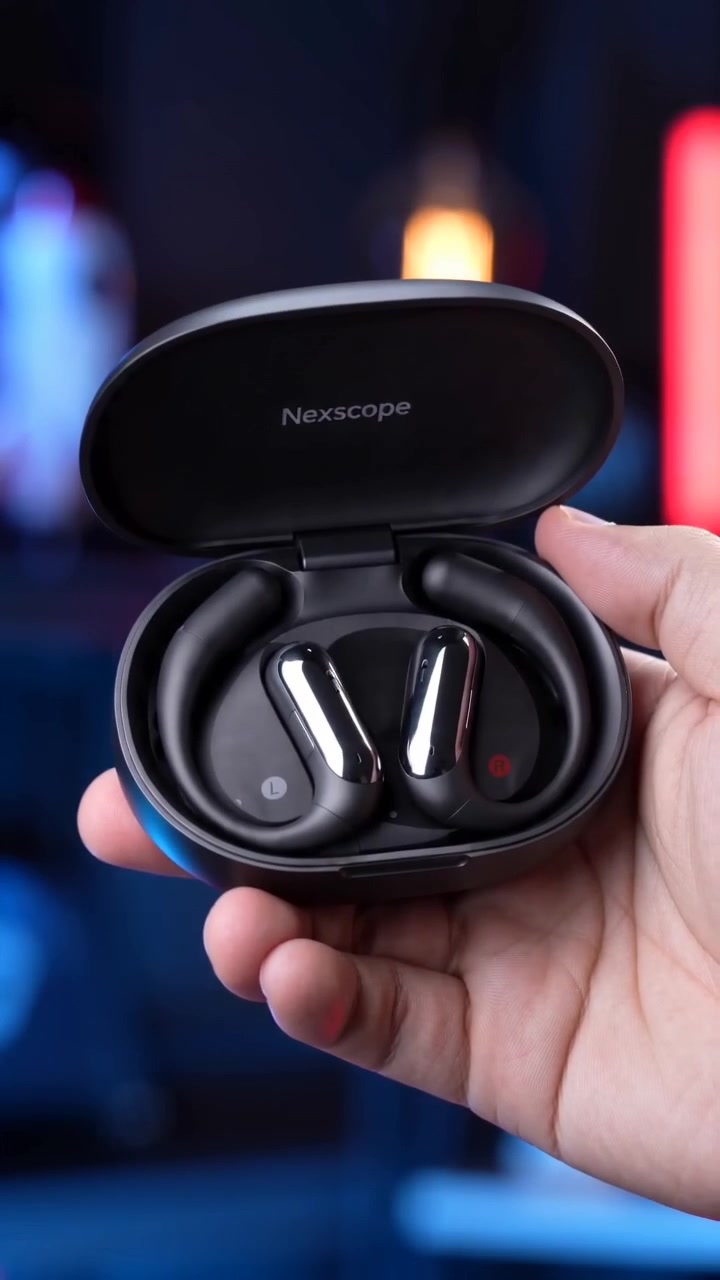
Video Clone: Wireless Earbuds in ActionVideo Clone
Adapt an idea

Video Clone

Bring a reference. Make a new concept.

Use a TikTok link or upload a reference clip, select the relevant segment, then add your product images and review the generation prompt.

Best for
Exploring a reference-led creative concept with your own product.
Output
A new product video guided by a selected reference segment.
What to prepare & how it works
BringA reference video you have permission to use, plus images of your own product.
  1. Resolve or upload a reference clip
  2. Confirm a segment and add product images
  3. Review the prompt and generate a new version

Reference guidance does not guarantee an identical shot, product appearance or performance.

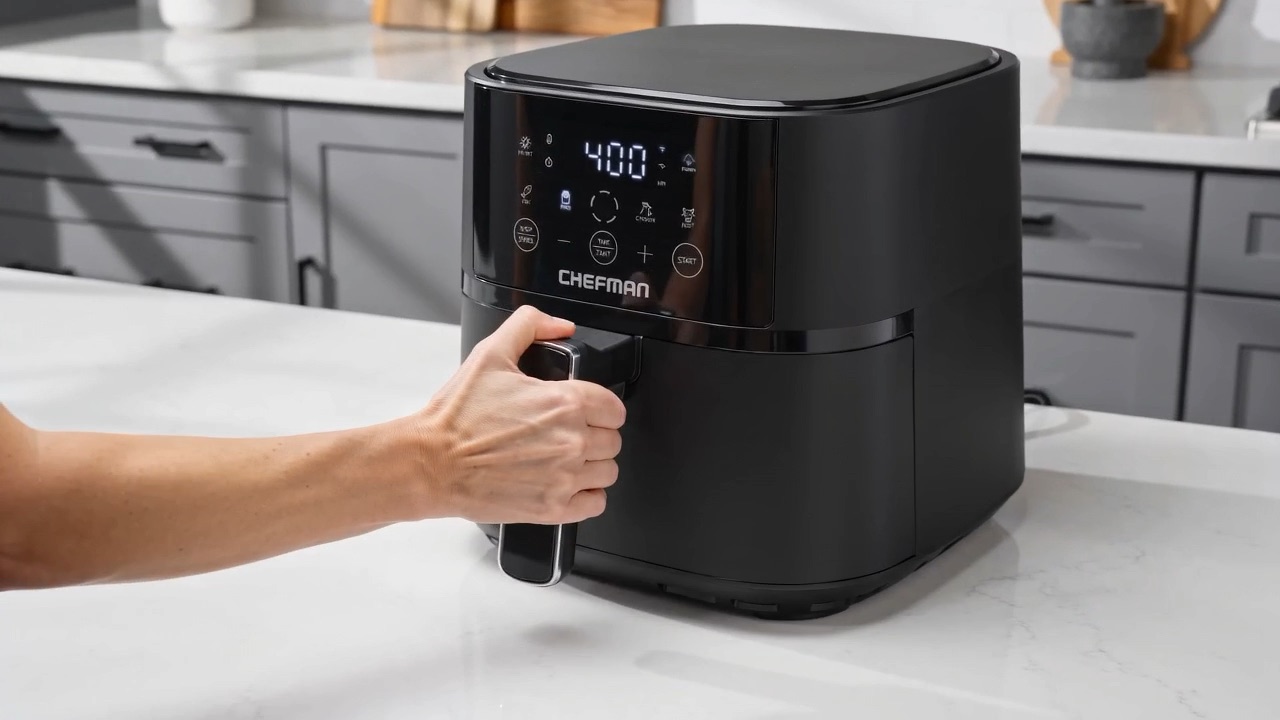
Bulk Video: Air fryerBulk Video
For repeatable production

Bulk Video

Organize a catalog of video projects.

Prepare several products, review their analysed profiles, choose templates and submit a batch. Monitor results and retry failed items.

Best for
Teams making repeatable videos for several products.
Output
A batch of product video jobs to review, retry and download.
What to prepare & how it works
BringProduct names, images and reviewed product information for each item.
  1. Organize products and review their facts
  2. Choose templates and check the quote
  3. Generate, review and download results

Test one representative product before a large batch. Available settings and costs come from the workspace.

See the starting point and result

See what each workflow can create.

Browse official Inspiration clips and production demos by workflow. Preview a result, then open the matching workspace for your product.

Image to Video examples

Poolside Sunglasses

Image to Video example

Try Image to Video

A Little Care, Every Day

Image to Video example

Try Image to Video

These are Nexscope's own examples, not independent reviews or a promise of your result. Your output depends on the materials, model and settings you choose.

Before your first generation

What do you need before generating?

Generation uses credits. Review the current estimate in your chosen workspace before submitting a job.

View official plans & credits Read the product video guide →
  1. Prepare useful materials

    Use clear images of the exact product. Have permission to use any reference footage and presenter assets.

  2. Make one deliberate choice

    Pick a single audience, selling point and intended placement. Check the script and estimate before generating.

  3. Review before publishing

    Check product shape, labels, claims and motion. Keep the useful result; revise the brief if it misses the mark.

Good to know

AI product video questions, answered.

How much does a product video cost?

Generation uses Nexscope credits. The amount depends on the workflow, model and output settings. Open the relevant workspace and review its current credit estimate before generating; use the official Plans & Billing page for current credit and subscription options.

Can I publish a generated product video without checking it?

Review it first. Check the exact product and variant, packaging text, spoken claims and motion against your real product. These workflows generate creative assets; they do not verify product claims or guarantee advertising approval or sales.

Which workflow should I try first?

If you have a clear product photo, start with Image to Video. Choose URL to Video for an accessible product page, Avatar Video for a presenter-led story, Video Clone for a reference-led concept, or Bulk Video after checking a representative single-product result.

Does this page generate videos?

This is a workflow selection guide. Each Start button opens the matching Nexscope workspace, where you sign in, provide your materials, review available settings and check the credit estimate before generating.

Are all models and settings available in every workflow?

No. Image limits, duration, resolution, aspect ratio and supported reference inputs vary by model and workflow. Use the available controls and estimate in the selected workspace rather than assuming an option applies everywhere.

Can I use the examples as evidence of my own result?

Examples are grouped by their matching workflow and come from Nexscope public Inspiration or production workflow demos. They illustrate possible outputs, not a guarantee for your product. Review your own generated video for product accuracy, claims and suitability before publishing.


For developers & creative teams

Video & Image APIs

Explore 56 APIs from Nexscope's Video & Image collection. Compare image generation, video models and multimodal tools, then open the matching API documentation.

56 APIs found

Check supported inputs, output formats, task status and current credit costs in each API's documentation before integrating.